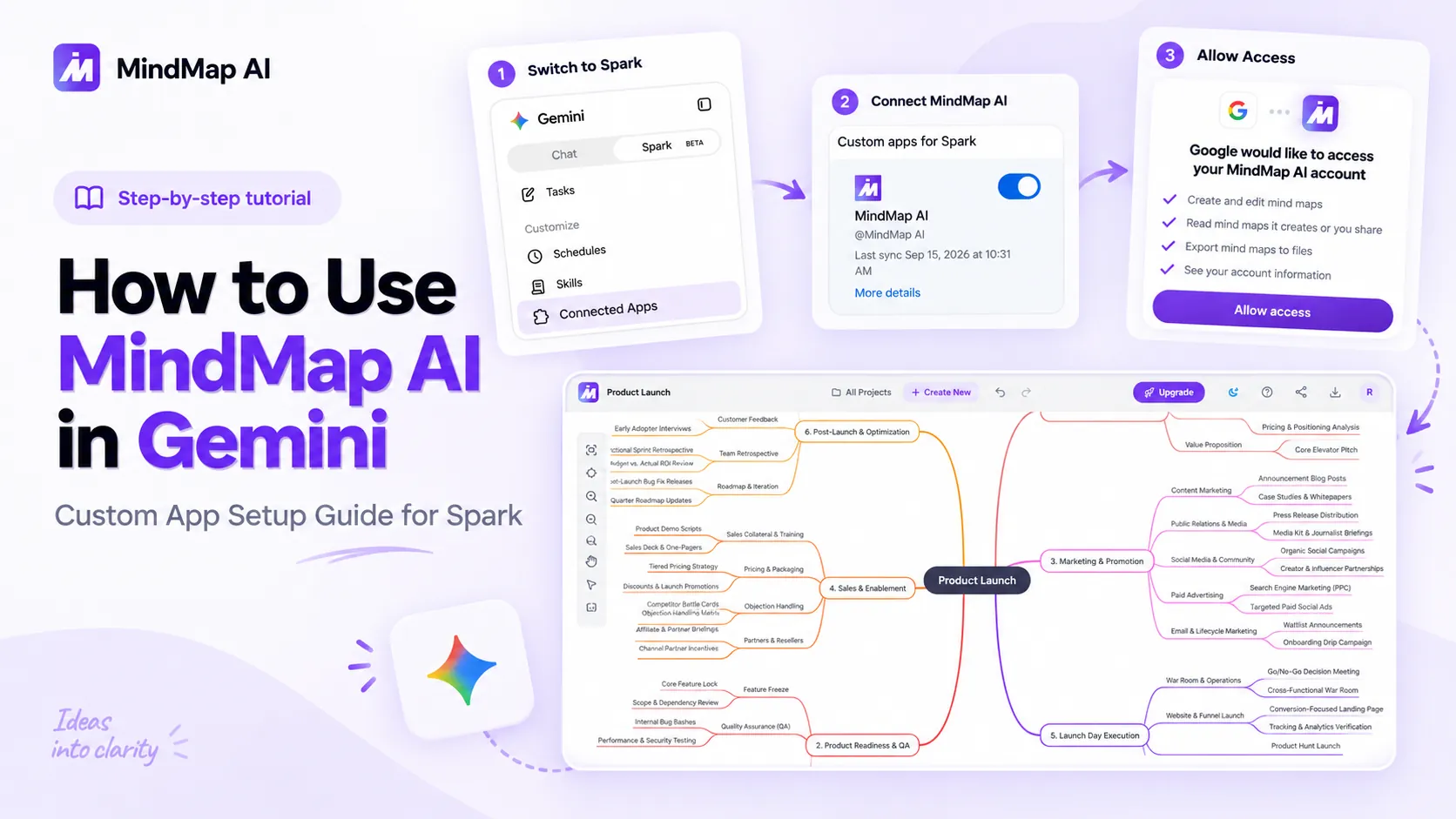
To use MindMap AI in Gemini, switch Gemini from Chat to Spark, open Connected Apps, choose the Custom apps tab, paste https://mindmapai.app/mcp into the link field, and click Next. Accept Google's custom app notice, link your Google Account, sign in to MindMap AI and click Allow access, then name the app MindMap AI and click Connect. From then on, type @MindMap AI in any Spark task and Gemini builds the map in your MindMap AI account. You need a Google AI Pro or Ultra subscription on a personal Google Account, because custom apps only work inside Gemini Spark. Eleven steps, one URL, about three minutes.
Gemini already sits next to your Gmail, Drive, and Docs. What it cannot do on its own is show you the shape of a plan, a project, or a pile of notes. The MindMap AI custom app fixes that. Ask Gemini Spark for a map and it builds a real, editable mind map in your MindMap AI account and hands you the link. This guide covers what the app does, the plan and account you need, why Gemini makes you add it by URL, the eleven setup steps with screenshots, the first prompts worth trying, and what to do when something does not work. If you use Claude, ChatGPT, or Notion instead, each has its own guide, and one MindMap AI account covers all of them.
What the MindMap AI custom app does in Gemini
MindMap AI plugs into Gemini Spark as a custom connected app. Under the hood it is an MCP server. MCP (Model Context Protocol) is the open standard that lets AI assistants call tools in other products. Once connected, Gemini gets 20 mind mapping actions it can run on your behalf, using your own MindMap AI account. You can ask for a map from a topic, a brief, a Google Doc, an email thread, or anything else Spark can read, then keep refining it in plain language.
- Create: Turn a topic, a document, meeting notes, or a brief into a structured map.
- Expand: Grow a branch, add relationship arrows to build a concept map, or group ideas with summary brackets.
- Restyle: Switch between mind map, logic chart, and org chart layouts, and apply a theme.
- Export: Take the finished map out as a file (PNG, SVG, PDF, Markdown, or CSV) when you are done.
- Keep: Every map is saved to your MindMap AI account, where you can carry on editing it on the canvas with full styling control.
Connecting is free and the app is available on every MindMap AI plan, including Free. Map creation and AI edits use credits from your MindMap AI account (see plans and monthly credits). Viewing and exporting your maps never uses credits, and manual editing on the canvas is always free.
One Gemini-specific detail: Spark asks you to click Allow before it runs any action that writes data. Creating a map counts as a write, so expect that prompt on your first request in each task. Google's help page explains that Gemini currently requires manual confirmation for write actions on custom apps. It is a safety step, not a fault.
Before you start: the plan and account you need
This is where Gemini differs most from Claude and ChatGPT. Custom apps are a Gemini Spark feature, and Spark is not part of the free Gemini experience. Check these before you begin:
- A Google AI Pro or Ultra subscription: Spark is only included in these two plans, per Google's Spark help page. Free Gemini and the lower AI Plus tier do not show the Spark toggle, so there is nowhere to add a custom app.
- A personal Google Account: Work and school (Google Workspace) accounts cannot use Spark or custom apps for now.
- Keep Activity turned on: Gemini cannot connect to custom apps when this setting is off. You can check it at myactivity.google.com under Gemini.
- Age and region: Google lists 18 or over. Its help page still describes custom apps as a US, English-only feature, but we set this up and ran it from Sri Lanka without any workaround, so that wording looks like a leftover from the early rollout. The firmer limit is Spark itself, which is not offered in the European Economic Area, the UK, Switzerland, or Nigeria.
- A desktop browser for setup: Custom apps can only be added in the Gemini web app at gemini.google.com. Once connected, the app works in Gemini Spark on the web and in the Gemini mobile app.
- A MindMap AI account: You can sign up free during the connect flow with Google, Apple, or email, so there is nothing to prepare in advance.
- Pop-ups allowed: The account linking and MindMap AI sign-in open in new windows. If your browser blocks them, clicking Connect looks like nothing happened.
If the Custom apps for Spark section is missing from your Connected Apps page, one of the items above is the reason. The fix is almost always the plan or the account type, not the MindMap AI server.
Why you add MindMap AI by URL instead of from a list
In Claude, MindMap AI is a listed connector in the Claude directory. In ChatGPT, it is a listed app. Both Anthropic and OpenAI run a public submission and review process for third-party tools. Google does not, at least not for the consumer Gemini app. The apps you see under Gemini's From Google and Other tabs are Google's own services and a small set of negotiated partners. There is no form a developer can fill in to be listed there.
What Google does offer is the third tab, Custom apps, where any personal account can paste the URL of a standards-compliant MCP server. Google's documentation describes this as the only self-serve route, and it comes with a notice that the app "hasn't been reviewed by Google". That notice appears for every custom app, not just MindMap AI. It is Google saying it has not audited the server, which is true of every third-party MCP server on this tab.
Our approach is to run one standards-based MCP server and meet each assistant where it is. The same server URL that powers the reviewed Claude and ChatGPT listings is the one you paste into Gemini. A few things on the MindMap AI side are worth knowing before you click Connect:
- No API key and no credentials to type: MindMap AI supports Dynamic Client Registration, so Gemini registers itself automatically. You never need to open the Advanced Settings section or paste a client ID.
- You approve every permission yourself: Sign-in uses OAuth. The permissions screen lists exactly what Gemini can do: create and edit mind maps, read the maps it creates or you share, export maps to files, and see your name, email, and plan. Nothing else.
- Gemini cannot see your other maps: It only reads maps it created or maps you explicitly share with it.
- You can revoke it at any time: Toggle the app off or remove it under Custom apps for Spark, or unlink it from your Google Account's Linked apps page. Both routes cut access immediately.
- Privacy policy and terms are public: Google asks you to review them before connecting. Links to both are on the MindMap AI sign-in screen.
How to connect MindMap AI to Gemini
Eleven steps, start to finish, on a desktop browser at gemini.google.com. You only do this once. After that the app is available to Spark on the web and in the Gemini mobile app.
The one thing you will need to copy is the MCP server URL: https://mindmapai.app/mcp
Step 1: Switch to Spark
Gemini opens in Chat by default. In the sidebar, flip the toggle to Spark. Custom apps only exist in Spark, so if you skip this you will not find the option in the next step.

Step 2: Open Connected Apps
In the Spark sidebar, under Customize, click Connected Apps. It sits below Schedules and Skills.

Step 3: Switch to the Custom apps tab
Three tabs sit above the list: From Google, Other, and Custom apps. Click the third one. If you cannot see it, go back to the requirements above.

Step 4: Paste the MCP server URL
Under Custom apps for Spark, paste https://mindmapai.app/mcp into the "Add a custom app link to get started" field, then click Next.

Step 5: Check the link, then Next
Gemini shows the URL back to you before it connects anything. Leave Advanced Settings closed. MindMap AI supports automatic client registration, so there are no credentials to enter. Click Next.

Step 6: Accept the custom app notice and Connect
Google explains that it does not control or monitor third-party MCP servers. This screen appears for every custom app. Tick I understand and accept the security and privacy risks, then click Connect.

Step 7: Link your Google Account
A Google account-linking window opens. It lists what Google may do through the app: run MCP server tools and retrieve and manage data from MindMap AI. Scroll to the bottom and click Agree and continue.

Step 8: Sign in to MindMap AI and allow access
The MindMap AI sign-in opens. Sign in, or create a free account. The screen lists what Google will be allowed to do: create and edit mind maps, read maps it creates or you share, export maps to files, and see your name, email, and plan. Click Allow access. Only you, signed in to your account, can approve this.

Step 9: Name the app and Connect
Gemini syncs the server and lists its available actions. You should see See all 20 next to actions like create_project, add_nodes, and export_project. The name field is pre-filled with MindMap AI. Click Connect.

Step 10: Confirm it is switched on
MindMap AI now appears as a card under Custom apps for Spark with the toggle on and a last sync time. The handle Gemini gives it is @MindMap AI. You are connected.

Step 11: Use it in a Spark task
Start a new Spark task, type @, pick MindMap AI, and describe the map you want. Gemini plans the steps, then asks for permission to run the create_project tool. Click Allow. The map is built in your MindMap AI account and Gemini replies with a summary and a link.

Open the link and the map is on the MindMap AI canvas, ready to expand, restyle, share, or export.

Prompts to try in your first Spark tasks
Open a Spark task and ask. Typing @ and selecting MindMap AI is the reliable way to make Gemini use the app rather than answer in text. Start with the first prompt, then keep going in the same task. Each follow-up edits the same map instead of starting a new one.
- Create: "@MindMap AI Create a product launch mind map."
- Brief: "@MindMap AI Map a project brief on Microplastic Remediation."
- From a Google Doc: "Read my Q4 planning doc in Drive and turn it into a mind map using @MindMap AI." (Works when Google Workspace is connected to Gemini.)
- From email: "Summarize the last five emails about the website redesign into a mind map with @MindMap AI." (Also needs Workspace connected.)
- Expand: "Expand the Risks branch into owners, likelihood, and mitigation."
- Connect: "Add arrows to my map to show which tasks depend on each other."
- Recall: "Show me my recent MindMap AI maps."
- Export: "Export the map as a PNG so I can drop it into Friday's deck."
Gemini replies with a short summary of the map and a link that opens it on the MindMap AI canvas. From there you can keep editing by hand, restyle it, share it, or export it.
Where Gemini has an edge
Spark can read Gmail, Drive, Docs, Calendar, and Keep once Google Workspace is connected to Gemini, and it can run tasks on a schedule. That combination is the interesting part. A weekly task like "Every Monday, update my Project Alpha map from this week's emails using @MindMap AI" turns a static map into one that keeps pace with your inbox. If your source material lives in Notion rather than Google Workspace, the Notion to mind map guide covers the same idea with ChatGPT and Claude, and the meeting notes guide shows how to turn transcripts into action-item maps.
How the Gemini setup compares with Claude, ChatGPT, and Notion
The MindMap AI server is the same in every assistant. What changes is how each one lets you add it, what it calls the result, and what it asks of you first.
| Assistant | How you add MindMap AI | Listed in a directory? | What to know | Guide |
|---|---|---|---|---|
| Gemini | Paste the URL under Custom apps for Spark | No. Google has no public directory for third-party MCP apps | Needs Google AI Pro or Ultra, a personal Google Account, and Spark mode. Set up on desktop web, then use on web or mobile | This guide |
| Claude | Enable from the Claude directory | Yes, reviewed by Anthropic | Called a connector. One click to enable, then sign in | Claude guide |
| ChatGPT | Enable from the ChatGPT app listing | Yes, reviewed by OpenAI | Called a plugin or app. Enable, sign in, then name it in your prompt | ChatGPT guide |
| Notion | Paste the URL under Connections, Custom MCP | No, added as a custom MCP server | Needs Notion AI. The Notion Agent then builds maps from your pages | Notion guide |
If you are choosing an assistant for mind mapping rather than adding MindMap AI to one you already pay for, the Claude apps ranking and the ChatGPT plugins ranking compare the options side by side.
If something does not work
| What you see | What to do |
|---|---|
| No Spark toggle in the sidebar | Spark needs a Google AI Pro or Ultra subscription and a personal Google Account. Work and school accounts, free Gemini, and AI Plus do not have it. Spark is also unavailable in the EEA, UK, Switzerland, and Nigeria. |
| No Custom apps tab or no "Custom apps for Spark" section | Check that Keep Activity is on and that you are on the web app at gemini.google.com, not the mobile app. If Gemini is set to a language other than English, switch it to English and reload. |
| Gemini asks for credentials under Advanced Settings | You do not need them. Leave Advanced Settings closed and click Next. MindMap AI registers itself automatically. |
| You clicked Connect and nothing happened | Your browser blocked the pop-up. The Google account linking and MindMap AI sign-in each open in a new window. Allow pop-ups for gemini.google.com and try again. |
| Gemini says the app "hasn't been reviewed by Google" | That notice appears for every custom MCP app, because Google has no review program for them. Tick the box and click Connect to continue. |
| Gemini answers in text, no map | Type @ and pick MindMap AI from the list before your request. Naming the app is what tells Gemini to use it. |
| Gemini asks to Allow the tool on every task | Expected. Google requires manual confirmation for write actions on custom apps. Click Allow and the map is built. |
| It does not appear in the Gemini mobile app | Custom apps must be added on the web first. Once connected there, open Spark in the mobile app and it will be available. |
| Map creation or edits stop working | You may be out of credits. Viewing and exporting existing maps and manual canvas edits stay free, so your work is not locked away. |
| The app shows as "[Custom] Mindmapai" during account linking | That is how Google labels custom apps on its linking screen. Once saved, the card and handle read MindMap AI. You are connected. |
Still stuck? The MCP connector help article covers connection issues in more depth. The same server works in Claude, ChatGPT, and Notion, so if you use more than one assistant, one MindMap AI account covers all four.
Final thoughts
Gemini asks a little more of you up front than Claude or ChatGPT: a paid plan, a personal account, and a URL to paste. In return you get an assistant that already sits inside Gmail, Drive, and Docs, and can now turn any of that into a map you can see and edit. Connect it once, type @MindMap AI whenever a plan starts sprawling, and let Gemini do the thinking while MindMap AI gives it somewhere to land. Your first maps are covered by the free monthly credits.
FAQ
Yes. Custom apps live inside Gemini Spark, and Spark is only included in the Google AI Pro and Google AI Ultra subscriptions. Free Gemini and the lower Google AI Plus tier do not show the Spark toggle, so there is no place to add a custom app. You also need a personal Google Account, because work and school accounts cannot use Spark yet. The MindMap AI side is free to connect and available on every MindMap AI plan, including Free. If you would rather not pay for Gemini, MindMap AI also works in Claude, ChatGPT, and Notion, and one MindMap AI account covers all of them.
Because Google does not run a public directory for third-party MCP apps in the consumer Gemini app. The apps under the From Google and Other tabs are Google services and a small set of negotiated partners, and there is no submission form for developers. Google's only self-serve route is the Custom apps tab, where you paste a server URL. That is why MindMap AI, and every other third-party MCP server, arrives in Gemini this way. In Claude and ChatGPT, which do run review processes, MindMap AI is a listed connector and a listed app.
The notice appears for every custom app added by URL, not just MindMap AI. Google is stating that it has not audited the server and that you are responsible for trusting the provider. On the MindMap AI side, sign-in uses OAuth with no API key, the permission screen lists exactly what Gemini can do, Gemini can only read maps it created or you shared, and you can revoke access at any time from Custom apps for Spark or your Google Account's Linked apps page. Review the privacy policy and terms linked on the sign-in screen, then continue if you are comfortable.
No. Custom connected apps are a Spark feature, so you need to flip the sidebar toggle from Chat to Spark before Gemini can see MindMap AI. Spark tasks behave a little differently from chats. Gemini plans the steps, shows its thoughts, and asks you to click Allow before it runs any action that writes data, such as creating a map. Once the map exists, follow-up requests in the same task edit that map. If you prefer a plain chat experience, Claude and ChatGPT both let you use MindMap AI in a normal conversation.
Yes, once it is connected. Custom apps can only be added in the Gemini web app at gemini.google.com on a computer. After that, Google makes them available in Gemini Spark on both the web and the Gemini mobile app. Open Spark on your phone, start a task, type @ and pick MindMap AI, and it works the same way. The maps themselves are saved to your MindMap AI account, so you can also open them in the MindMap AI iOS or Android app or on the web canvas.
Connecting is free and the app is available on every MindMap AI plan, including Free. Map creation and AI edits use credits from your MindMap AI account, the same balance you use on the web app, and the pricing page lists what each plan includes. Viewing and exporting your maps never uses credits, and manual editing on the canvas is always free, so a finished map is never locked away. Gemini Spark itself is part of a Google AI Pro or Ultra subscription, which you pay to Google separately.
The approval screen lists them: create and edit mind maps, read the maps it creates or you share, export maps to files, and see your name, email, and plan. Gemini cannot see maps you have not shared with it, and only you, signed in to your account, can approve the connection. Google's own linking screen adds that Google may run MCP server tools and retrieve and manage data from MindMap AI on your behalf. To remove access, toggle the app off or remove it under Custom apps for Spark, or unlink it from your Google Account's Linked apps page.