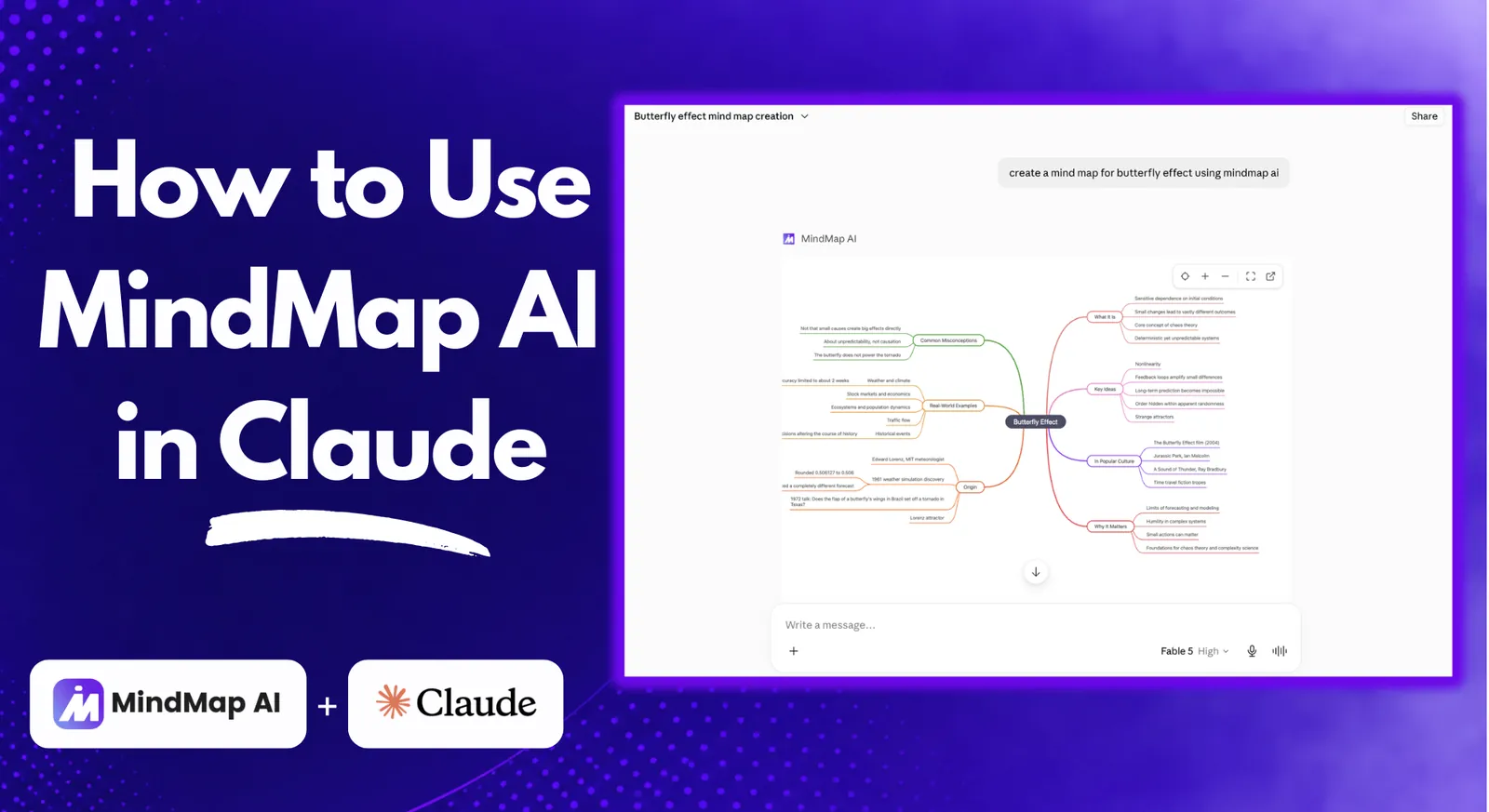
To use the MindMap AI MCP connector in Claude, open Customize in the claude.ai sidebar, go to Connectors, click Add and choose Browse connectors, search for MindMap AI, click Connect, log in, allow access, then toggle MindMap AI on in any chat from the + menu. Setup takes under two minutes, connecting is free with bonus credits included, and there is no code and no plugin to install.
Claude is great at thinking through a problem with you. It is less great at showing you the shape of that thinking. The MindMap AI connector fixes that: it plugs into Claude through MCP so any chat can become a real, editable mind map that renders right there in the conversation. This guide walks through the whole thing: what the connector actually does, the nine clicks that get it running, and the prompts worth trying first.
What the MindMap AI connector actually does
The connector is an MCP (Model Context Protocol) integration. In plain terms, it hands Claude a set of mind mapping tools it can call on your behalf, using your own MindMap AI account. Once it is on, you can ask Claude to build a map from a topic, a brainstorm, a set of meeting notes, or a document you paste into the chat, and then keep refining it by talking to it.
- Create – turn a topic, an outline, notes, or a whole conversation into a structured map.
- Refine – expand a branch, add relationship arrows to build a concept map, group ideas with summary brackets, or reorganise the structure.
- Restyle – switch between mind map, logic chart, and org chart layouts, and apply themes.
- Export – take the finished map out as a file when you are done.
- Keep – every map is saved to your MindMap AI account, where you can carry on editing it on the canvas with full styling control.
Connecting is free and comes with bonus credits to get you started. Map creation and AI edits use credits from your MindMap AI account (see plans and monthly credits); viewing and exporting your maps never uses credits, and manual editing on the canvas is always free.
Before you start
Two things, both quick:
- A Claude account – do the setup on claude.ai in a desktop browser. The connectors directory lives in the web app's settings.
- A MindMap AI account – you can sign up free during the connect flow with Google, Apple, or email, so there is nothing to prepare in advance.
How to set up the MindMap AI MCP connector in Claude
Nine steps, start to finish. You only do this once. After that the connector is available in every chat.
Already signed in to Claude? Jump straight to the MindMap AI listing in the Claude directory and pick things up at Step 5. The steps below show the full path from a fresh chat.
Step 1: Open Claude, then Customize
Go to claude.ai and click the Customize icon in the left sidebar. It sits near the bottom of the icon rail and opens Claude's settings panel.

Step 2: Go to Connectors
In the settings panel, look under the Customize group in the left menu and pick Connectors. This is the page that lists everything Claude is currently wired into.

Step 3: Open Add, then Browse connectors
Hit Add in the top right of the Connectors page and choose Browse connectors. Ignore "Add custom connector". You do not need a server URL, because MindMap AI is already listed in the directory.

Step 4: Search "MindMap AI"
Type MindMap AI into the directory search and open the first result. It is tagged as a Community connector and described as creating mind maps and concept maps from your conversation.

Step 5: Click Connect
The directory entry explains what the connector can do and how credits work. Click Connect in the top right. Connecting itself is free and includes bonus credits to get started.

Step 6: Log in to MindMap AI
A MindMap AI login window opens. Sign in with Google, Apple, or email, or create a free account on the spot. Nothing to prepare in advance.

Step 7: Allow access
Approve the permissions so Claude can create and edit mind maps, read the maps it creates or you share, export maps to files, and see your name, email, and plan. Only you, signed in to your account, can approve the connection.

Step 8: Check that you are connected
Back in the Connectors list, MindMap AI now appears with a check beside it. That check is the signal that the account link worked. Nothing else to configure.

Step 9: Switch it on in any chat
Open a chat, click the + button next to the message box, open Connectors, and toggle MindMap AI on. That is the last click. If Claude ever ignores a mapping request, this toggle is the first thing to check.

Prompts to try in your next chat
The connector responds best when you name it. Start with the first one, then keep going in the same chat. Each follow-up edits the same map rather than starting over.
- Create – "Create a mind map of my product launch plan using MindMap AI."
- Expand – "Expand the Marketing branch into channels, owners, and deadlines."
- Connect – "Add relationship arrows from Beta feedback to the roadmap items it affects."
- Reshape – "Switch this to a logic chart layout and apply a cleaner theme."
- Export – "Export the map so I can drop it into Friday's deck."
Where this earns its keep:
Brainstorming that has outgrown a bullet list, study notes you want to see as a structure instead of a wall of text, meeting notes that need turning into owners and next steps, and planning sessions where the relationships matter more than the order. If you are weighing your options inside Claude, see how MindMap AI compares in our test of the best Claude apps for mind mapping.
If something does not work
| What you see | What to do |
|---|---|
| Claude answers in text, no map | The connector is off for that chat. Click +, open Connectors, and toggle MindMap AI on (Step 9), then ask again. |
| MindMap AI is not in the directory search | Check the spelling with the space, and make sure you are in Browse connectors rather than the Popular row on the Connectors page. |
| No check mark after connecting | The permission dialog was closed or denied. Reopen the directory entry and run Connect again, then choose Allow access. |
| Creation or edits stop working | You may be out of credits. Viewing and exporting existing maps and manual canvas edits stay free, so your work is not locked away. |
| Claude edits the wrong map | Name it. Say which map or which branch you mean, or start a fresh chat for a new topic. |
Still stuck? The MCP connector help article covers connection issues in more depth, including the ChatGPT side of the connector.
Final thoughts
Nine clicks is a low price for turning every Claude conversation into something you can see. Connect it once, toggle it on when a chat starts sprawling, and let the structure appear while you are still thinking. Your first maps are on us with the free bonus credits.
FAQ
No. MindMap AI is listed in Claude's connectors directory, so setup is a search, a Connect click, and a login to your MindMap AI account. There is no server URL to paste, no plugin to install, and no configuration file to edit. The whole flow runs inside claude.ai in a desktop browser and takes under two minutes.
Yes, connecting is free and includes bonus credits to get started. Map creation and AI edits draw on credits from your MindMap AI account, the same balance you use on the web app. Viewing and exporting your maps never uses credits, and manual editing on the canvas is always free, so a finished map is never locked away.
The approval screen lists them: create and edit mind maps, read the maps it creates or you share, export maps to files, and see your name, email, and plan. Claude cannot see maps you have not shared with it, and only you, signed in to your account, can approve the connection. You can revoke access at any time from Claude's Connectors settings.
Every map is saved to your MindMap AI account, not just the chat. Open it on the canvas to keep editing with full styling control, share it, or export it in the formats your plan includes. Nothing disappears when the conversation ends, and you can pick the same map up again in a later chat by naming it.
You connect the account once. Per chat, you use the + menu to make sure the MindMap AI toggle is on. That toggle is the switch that lets Claude call the mapping tools in that conversation, and it is the first thing to check if Claude answers in plain text instead of building a map.